



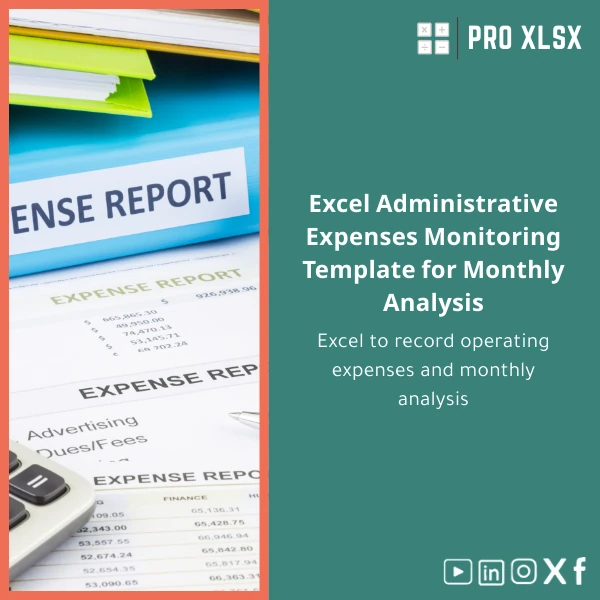
Excel Administrative Expenses Monitoring Template for Monthly Analysis
Original price was: $37.53.$26.73Current price is: $26.73.
A professional Administrative Expenses Monitoring Template to record operating expenses, run monthly analysis, and produce management-ready reports and dashboards — built for accountants, data analysts, and companies that need a fast, accurate way to control costs using Excel.
Key benefits & value for buyers
The Administrative Expenses Monitoring Template turns raw ledgers into decision-ready insight with minimal setup. It is designed to reduce the time spent on routine consolidation tasks and improve cost control through reliable monthly analysis.
What you get — translated into outcomes
- Faster month-end closes: structured input sheets and validation reduce corrections and accelerate reconciliation.
- Clear accountability: assign expenses to departments and cost centers so managers see their responsibility and trends instantly.
- Actionable variance reporting: automatic variance columns (actual vs budget, prior month, YTD) highlight where to investigate and cut costs.
- Lower error rates: standardized categories and dropdowns reduce misclassification across teams.
- Scalable: works for a single department or consolidated company-level roll-up without redesign.
Use cases & real-life scenarios
Below are practical ways customers use this administrative expenses tracker Excel in day-to-day operations.
Example 1 — SME Finance Team
A Cairo-based SME uses the template to consolidate expenses from five departments. The finance manager imports month CSVs, runs the pivot dashboard and sends a one-page summary to the CEO showing top 5 expense drivers and month-on-month trends.
Example 2 — External Accountant / Consultant
An external accountant uses the template during monthly bookkeeping to separate recurring admin costs from one-off items and prepare audit-ready schedules for the auditor.
Example 3 — Cost Reduction Project
A company launching a cost-control program filters the template by supplier and category to identify recurring subscriptions that can be renegotiated, saving both time and budget.
Who is this product for?
- Accountants and controllers who need an administrative expenses tracker Excel for reliable reporting.
- Data analysts and BI teams who want clean, pivot-ready data for dashboards.
- Small and medium companies seeking an affordable operating expenses tracking template to standardize monthly analysis.
- Consultants and auditors who require structured schedules and variance explanations.
How to choose the right template & options
Templates are more useful when they match your process. Consider these decisions:
- Single-entity vs multi-entity: pick the version that supports consolidation if you have multiple subsidiaries.
- With or without VBA macros: choose the macro-enabled file if you want recurring-entry automation; otherwise use the macro-free file for strict IT environments.
- Reporting horizon: the default template supports 12 months. If you need rolling 24/36-month trends, request the extended version as an add-on.
- Localization: use the local-currency setup and customize account names to match your chart of accounts — this is quick with our hourly customization service.
Quick comparison with typical alternatives
When deciding between the template and other options, consider:
- Manual spreadsheets: cheaper at first but error-prone and time-consuming. Our template adds structure, validation and pre-built analysis to save time every month.
- Accounting package reports: useful but often rigid. The template allows flexible grouping, ad-hoc analysis and side-by-side budget vs actual comparisons without additional software.
- Custom BI tools: powerful but costly and complex to implement. This Excel solution delivers fast results at a fraction of the cost and can feed into BI later.
Best practices & tips to get maximum value
- Map your chart of accounts to the template categories before the first import to ensure consistency.
- Use the pivot-ready transactions sheet as the single source of truth — never keep parallel “shadow” spreadsheets.
- Schedule a 30–60 minute setup session (hourly service available) to tailor dropdowns and departmental hierarchies.
- Keep a monthly backup copy labeled with the month and year to support audits and trending analysis.
- Use conditional formatting sparingly for material variances only (e.g., >10%) to focus management attention.
Common mistakes when buying or using similar templates — and how to avoid them
- Buying a one-off file without customization: templates work best when categories match your accounts. Plan a short customization session if needed.
- Mistaking format compatibility: ensure your Excel version supports the template (see specs). Open always on desktop Excel for full functionality.
- Mixing capital with operating expenses: create a separate capex sheet or tag capital items to avoid misleading monthly operational metrics.
- Not validating imported data: always run the built-in validation checks after import to catch mis-posted items early.
Product specifications
- File format: .xlsx (macro-free) and an optional .xlsm macro-enabled version for automation
- Compatibility: Microsoft Excel 2016, 2019, 2021 and Office 365 (desktop recommended)
- Sheets included: Instructions, Input (transactions), Chart of Accounts mapping, Monthly Roll-up, Pivot Data, Dashboard, Notes
- Languages: English (labels easily editable for Arabic localization)
- Typical file size: < 1 MB
- Usage notes: keep calculations automatic; avoid editing formulas on Dashboard sheets; use mapping sheet for account/category control
- Optional services: hourly customization, data entry, VBA automation and dashboard tailoring available from ProXlsx
Frequently Asked Questions
Will this template work with my accounting system exports (CSV)?
Yes — the template includes an import-ready transactions sheet with clear column headers. Most CSVs (date, account code, description, amount, department) can be copied or mapped quickly. ProXlsx offers paid assistance by the hour if you want us to automate the import.
Can the template handle multiple currencies?
The default setup assumes a single reporting currency. Multi-currency support is available as a customization (conversion rates table and functional currency roll-up). Contact us if you need multi-currency functionality.
Is this file safe to use — what about security?
Files are standard Excel workbooks and remain on your local machine or company network. The macro-free version contains no executable code; the macro-enabled version uses VBA you can review. If you require code-signing or restricted macros, we can provide guidance or a macro-free alternative.
What if I need the template customized for my chart of accounts?
ProXlsx provides hourly customization services to map your accounts, add departments, and adjust dashboards. Customization is charged separately and can usually be completed within a few hours depending on scope.
Ready to control administrative costs faster?
Download the Administrative Expenses Monitoring Template now and start producing accurate monthly expense reports and dashboards in hours — not weeks. For tailored setups or automation, ProXlsx offers fast hourly services to match the template to your workflow.
Need help choosing the right version? Contact ProXlsx for a quick pre-purchase consultation — we help you decide the best fit for your team.




Reviews
Clear filtersThere are no reviews yet.